The passwd Command
Summary
The passwd command allows a user to set or change their password. It also allows superusers to change passwords for any other users. The command has many options which are described below.
Basic command structure
For all descriptions below, the dollar sign indicates the BASH command prompt.
$ passwd [options] [userid]
Note: If you do not specify a userid in your command prompt, running passwd will change your (the current user’s) password. It will prompt a new password to be typed and retyped.
Possible Flags
-d
The -d flag deletes a user’s password. This allows the user to set a new password.
-e
The -e flag expires the user’s password. The next time the user logs in, they will be prompted to change their password.
-l
The -l flag locks the account of the user named in this command. The user will no longer be able to login with their previously set password.
-u
The -u flag unlocks the account of the user named in this command.
-n
The -n flag, followed by an integer and userid, sets the number of days before a user’s password can be changed. If no integer follows this flag, a “0” is assumed, and the user can immediately change their password.
-x
The -x flag, followed by an integer and userid, sets the maximum number of a days a user’s password remains valid. After that number of days, the user will be required to change their password.
-S
The -S flag displays account status information, such as whether a password has been set.
-a
The -a flag can only be used in conjunction with the -S flag; it displays account information for all users.
Output
The passwd command has many different kinds of outputs as described below:
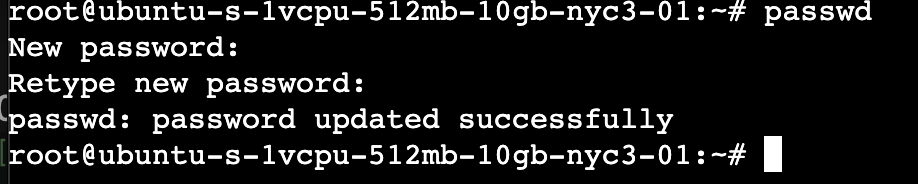
- Standard output with no flags or userid specified, the
passwdcommand changes the password for the current user.
- Outputs with flags with the
-lflag paired with a userid, thepasswdcommand locks the the password for the user. Users with a locked password cannot change their password.

- with the
-uflag paired with a userid, thepasswdcommand changes the password for the current user.

- Here is the output a user will see after the
passwdcommand with the-eflag has been run:

Examples
- As administator, if you need to make quick changes to the passwords for users on your network, you could use the $
passwd user1to make necessary changes. - If you wanted to prompt a user to change their password, you could use $
passwd -x 90 user1to automatically expire their password after 90 days.
Go back to the main list of commands