The history Command
Summary
The history command allows you to display and manipulate the history list.
The command has many options which are described below.
Basic command structure
For all descriptions below, the dollar sign indicates the BASH command prompt.
$ history [options]
Possible Flags
-c
The -c flag clears the entire history list by deleting all entries.
-d offset
This option removes history at a given postion or “offset.” The offset is the line number of the command that you want to remove. The following example removes line 252 from the history list:
$ history -d 252
Negative offsets will count backwards from the end of the history list. If you make a mistake or run a command that you don’t want to record in the history list, you might use:
$ history -d -2
To remove sequential entries, use a hyphen to seperate the start and end of a given range.
$ history -d START_NUMBER-END_NUMBER
-a
The -a flag appends history lines from this session to the history file. This flag can be useful when you want to save commands from the current session to a seperate file. To do this you would add a file name, for example:
$ history -a my_project_commands.txt
-r
The -r flag reads a history file and appends the contents to the current history list. This can be used to append a .txt file to the history list.
-n
The -n option refers to a number of entries. When used with the history command, this option will return only the last ‘n’ commands. To show only the last 10 entries, for example, use:
$ history 10
-w
The -w flag adds the current history list to the history file.
-p
The -p flag will perform a history expansion on each argument and display the result without storing it in the history list. More simply, this flag allows you to print a command from the history list without executing it.
-s
The -s flag will store the arguments within the history list as a single entry.
!
An exclamation point may also be used to interact with the history list. Run any commnand from the list by combining an exclamation point with the line number or a text string. Add a :p argument to return a command using an exclamation point without executing it.
$ ![string]:p
Additional Search tools
Using history with grep
When the history command is combined with grep, the returned list will only show lines containing a specific keyword or command. For example, the following command will only return entries where ls was used:
$ history | grep "ls"
CTRL-R
CTRL-R can be used to perform a “reverse-i-search”. For example, to use a command from the last time you accessed a web server, you might search the name of the server:
PRESS [CTRL] + [R] then type “apache2”.
What you will see in the console window is:
$ (reverse-i-search)`':
After you have typed what you are looking for, use the CTRL-R combination to scroll backward through the history. Once you’ve found the command you’re looking for, use [Enter] to execute it.
Alternatively, using the right or left arrow keys will place the command on an actual command-line so you can edit it.
Output
Each entry of the history list contains a line number followed by a command in descending order of execution:
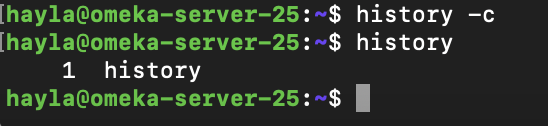
The list corresponds to a hidden file in the home directory that can be opened with a text editor such as nano:
$ sudo nano ~/.bash_history
Using Date and Timestamps
The bash shell stores a .bashrc file containing format settings for the output of the history command. To modify these settings, open a text editor, such as Nano using the command:
Change the output format to include date and timestamps by adding the following variable to the .bashrc file with the desired arguments:
%d. Day.
%m. Month.
%y. Year.
%H. Hour.
%M. Minutes.
%S. Seconds.
%F. Full date (Y-M-D format).
%T. Time (H:M:S format).
%c. Complete date and timestamp (Day-D-M-Y H:M:S format).

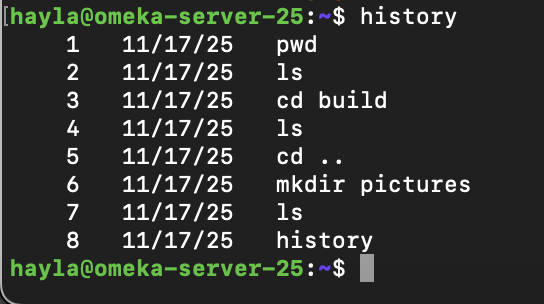
Here are the results of this variable change, notice how including spaces within the variable affects the output:
Modifiers for history capacity
The history list size is set to a default. Modify this default by changing the HISTSIZE variable in the .bashrc file. For example, 100 entries:
HISTSIZE=100
The history file size can also be modified. For example, 5,000 entries:
HISTFILESIZE=5000
Either variable can also be set to -1, this will yield unlimited entries:
export HISTSIZE=-1export HISTFILESIZE=-1
For more information about the history library, access the GNU Histroy Library manual using command:
$ man history
Go back to the main list of commands